
In summary:
- Treat your Photoshop file not as a personal canvas, but as a shared production asset with clear, systematic organization.
- Prioritize non-destructive workflows using Smart Objects and adjustment layers to preserve flexibility for the entire team.
- Structure layer groups to mirror the scene’s depth (background, midground, foreground) for intuitive navigation.
- Implement a file handoff protocol, including a README layer, to eliminate guesswork and reduce revision time.
- Use linked vector Smart Objects for scalable elements to keep file sizes manageable and edits efficient.
Opening a colleague’s Photoshop file can feel like archaeology. You excavate through layers named “Layer 1 copy 5,” decipher cryptic group structures, and pray that a critical element hasn’t been permanently flattened. A 500-layer PSD isn’t just complex; in a collaborative studio, a disorganized file becomes a source of friction, lost hours, and genuine frustration. It’s a form of “technical debt” that cripples a project’s momentum, forcing every other artist on the team to waste time reverse-engineering your creative process instead of building upon it.
Most advice on this topic revolves around generic tips like “name your layers” or “use groups.” While true, this advice misses the fundamental point. The challenge isn’t tidiness for its own sake. The real goal is to build a robust, self-documenting system that anyone on your team can understand and modify with minimal friction. It’s about shifting your mindset from creating a static image to engineering a flexible, non-destructive production file.
But what if the solution isn’t just about cleaning up, but about adopting a studio-proven methodology from the very start? This guide moves beyond the basics to detail a systematic approach to Photoshop file organization. We will explore how to structure your layers like a professional compositor, make strategic choices between different layer types, and implement handoff protocols that make your files a pleasure to work with. This isn’t just about not being hated; it’s about becoming an invaluable, efficient, and respected member of a creative team.
To navigate this professional workflow, we will cover the core principles and advanced techniques that separate amateur files from studio-grade assets. The following sections break down each critical aspect of building a clean, collaborative, and future-proof Photoshop document.
Summary: A Systematic Approach to Complex Photoshop Files
- Why Painting Directly on a Pixel Layer Is a Career-Limiting Move
- How to Structure Layer Groups to Mirror the Depth Planes of the Scene
- Smart Objects vs. Raster Layers: Which Keeps Your File Editable but Heavy?
- The File Size Limit Mistake That Makes Your PSD Unopenable
- When to Use “Pass Through” vs. “Normal” on Layer Groups to Avoid Lighting Errors
- How to Digitally Color-Correct Photographs of Faded Paintings to See the Original State
- The Messy File Mistake That Ensures No Other Designer Can Ever Edit Your Work
- How to Create Vector Graphics That Scale to Billboard Size Without Distortion
Why Painting Directly on a Pixel Layer Is a Career-Limiting Move
Working destructively by painting or editing directly on a pixel layer is the original sin of professional digital art. It permanently alters the source pixels, making it impossible to undo changes, adjust effects, or hand the file over to another artist without causing major headaches. In a studio environment where revisions are constant and collaboration is key, a destructive workflow isn’t just inefficient; it’s a sign of an amateur process that limits your professional growth. Every permanent edit you “bake in” is a door you close for future adjustments.
The core principle of a professional workflow is non-destructive editing. This means that all your changes—from color correction to complex retouching—are applied on separate layers (like adjustment layers) or within containers (like Smart Objects). This methodology preserves the original image data, allowing you or a teammate to go back and tweak any parameter at any stage of the project. Adopting this approach signals that you understand the collaborative nature of production work. Professional research confirms that non-destructive workflows allow for unlimited revisions without any degradation in quality, a non-negotiable requirement in high-end production.
Instead of painting a shadow directly onto your character’s layer, you create a new layer above it, set its blend mode to Multiply, and paint the shadow there. If the client asks for the shadow to be softer or a different color, you can adjust your shadow layer without ever touching the original artwork. This simple shift in process is what separates a static, dead-end file from a living, flexible production asset. It demonstrates foresight and respect for the project’s entire lifecycle and for the other artists who will interact with your work.
How to Structure Layer Groups to Mirror the Depth Planes of the Scene
A flat list of 500 layers is impossible to navigate. The most intuitive and widely adopted professional method for taming this complexity is to organize layer groups to represent the physical depth of the scene. Instead of grouping by object type (e.g., “all the trees,” “all the rocks”), you group by spatial planes: Foreground, Midground, and Background. This simple, logical structure allows any artist opening the file to immediately understand the composition’s spatial arrangement and quickly locate elements based on where they appear in the final image.
Within each of these master depth groups, you can then create more specific sub-groups. For example, your `[MIDGROUND]` group might contain `[CHARACTER]`, `[VEHICLE]`, and `[PROPS]`. This creates a hierarchical system that is both logical and easy to parse. This organizational model is so effective that it has become an industry standard in high-end post-production.
Case Study: The Retouching Academy Standard
A workflow popularized by studios like Retouching Academy demonstrates a professional structure with three master groups: `[ART]` for all creative layers organized by depth, `[GRADE]` for all global color grading and final adjustments, and `_META` for guides and notes. This clean separation between the creative build and the final post-processing ensures that a colorist can work on the `[GRADE]` group without ever needing to touch the underlying artwork, streamlining the handoff process between different specialists on a team.
This depth-based organization transforms the layer panel from a confusing list into a map of the scene. When a director asks to “push that mountain further back and make it hazier,” you know to immediately open the `[BACKGROUND]` group, find the `[MOUNTAINS]` sub-group, and apply your adjustments there. You aren’t hunting for a layer named “mountain_final_v2_copy”; you’re navigating the scene’s logic.
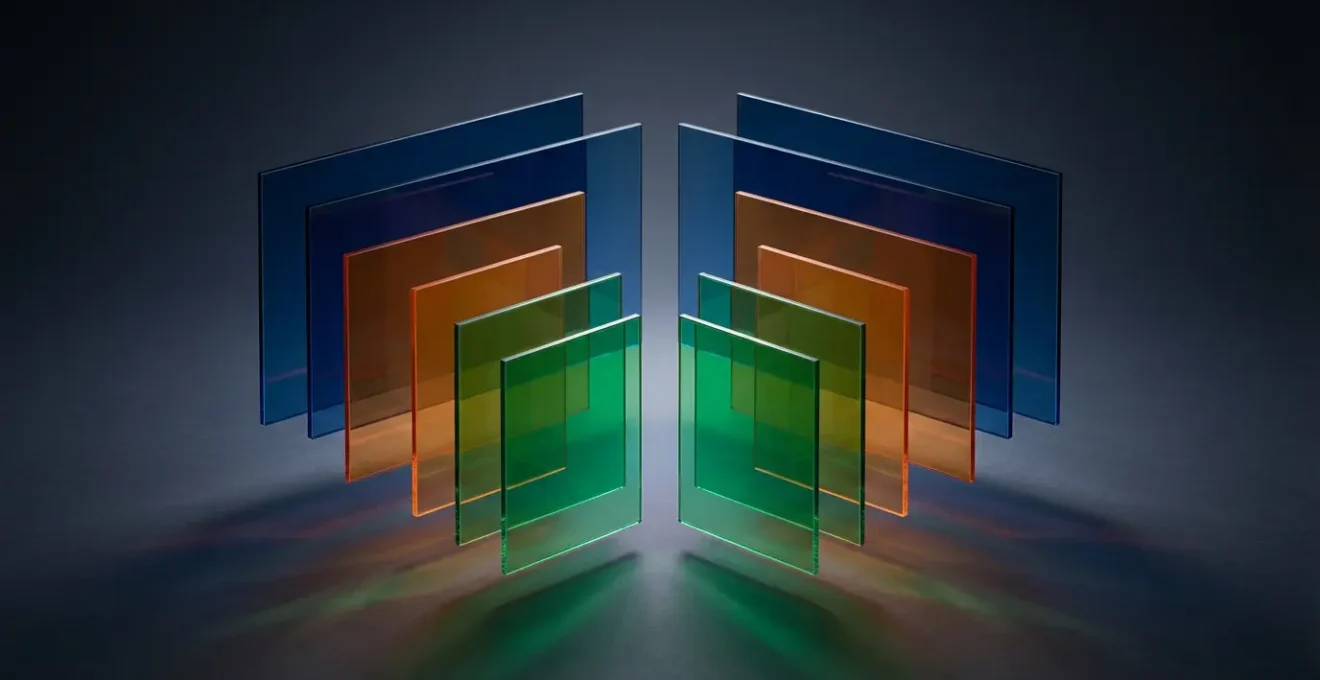
As seen in the visual metaphor above, thinking of your groups as distinct planes of glass allows for a clear, organized composition. Each plane holds specific elements but works together to create a cohesive whole. This structure is the architectural blueprint of a professional PSD file, ensuring it remains stable, scalable, and easy for anyone to deconstruct.
Smart Objects vs. Raster Layers: Which Keeps Your File Editable but Heavy?
The choice between a Smart Object and a standard raster layer is a critical decision that balances editability against performance. A raster layer is a simple grid of pixels; it’s lightweight, but any transformation (like scaling down and then up again) or filter application is destructive and degrades quality. A Smart Object, on the other hand, is a container that embeds the original source data (whether raster or vector). This allows you to scale, rotate, and apply filters non-destructively, as Photoshop always references the pristine source data inside the container. However, this flexibility comes at a cost: significantly larger file sizes and higher RAM usage.
The strategic choice depends on the layer’s function. Use Smart Objects for any element that you anticipate needing to re-scale, re-edit, or reuse multiple times, such as logos, UI elements, or character assets that appear at different sizes. Use standard raster layers for elements that are unlikely to change, such as unique painted textures, final lighting effects, or background plates. A common mistake is to turn everything into a Smart Object, which can quickly bloat a file to an unworkable size. Conversely, failing to use them for key assets can lock you into destructive edits that are costly to fix later.
This comparative table breaks down the key trade-offs, helping you make an informed decision for each layer. As this in-depth analysis of non-destructive editing shows, the choice is strategic, not absolute.
| Feature | Smart Objects | Raster Layers |
|---|---|---|
| File Size Impact | Larger (stores full embedded file) | Smaller (stores only pixels) |
| Scalability | Infinite without quality loss | Quality degrades when scaled up |
| Filter Application | Non-destructive (Smart Filters) | Destructive (permanent) |
| Transform Reversibility | Fully reversible | Not reversible after save |
| Memory Usage | Higher RAM requirements | Lower RAM requirements |
| Best Use Case | Logos, repeated elements, complex edits | Final touches, simple adjustments |
Ultimately, a well-structured file uses a hybrid approach. The underlying principle is to contain potential change within Smart Objects while keeping static elements as lightweight raster layers. This balances the need for flexibility with the practical demands of performance.
Smart Objects are never ‘baked in.’ You can adjust, hide, or mask them as your design evolves, knowing the original always remains untouched.
– Learning Curve Global, Non-Destructive Editing Guide
The File Size Limit Mistake That Makes Your PSD Unopenable
There’s a terrifying moment every digital artist has faced: you try to open a massive, deadline-critical PSD file, and Photoshop simply says “no.” While Photoshop supports PSB (Large Document Format) files up to 300,000 pixels and 4 exabytes, the standard PSD format has a hard limit of 30,000 pixels in any dimension and a 2 GB file size. Unknowingly exceeding these limits is a common and disastrous mistake. More often, however, the file isn’t technically corrupt but simply too bloated with unnecessary data for your system’s RAM to handle, leading to an effective “unopenable” state.
This “file bloat” is rarely caused by a single large layer. It’s the result of hundreds of small, unoptimized practices accumulating over time. Hidden layers that were never deleted, alpha channels from old selections, pixel data existing far outside the canvas bounds, and an over-reliance on embedded Smart Objects all contribute to a file’s weight. Proactive file hygiene is not just good practice; it’s a critical preventative measure against a file that holds your work hostage.
Regularly “cleaning” your file is essential. This involves a routine of deleting unused layers, merging finalized details that no longer need to be separate, and clearing data outside the visible canvas. If you find yourself with a file that refuses to open, all is not lost, but recovery can be stressful. The best approach is always prevention.
- Monitor your file size constantly via `File > File Info > Document Size`.
- Delete unused layers and empty groups at the end of every work session.
- Use the command `Image > Trim…` based on transparent pixels to remove invisible data outside the canvas.
- Check the Channels panel for temporary alpha channels that were created from selections and delete them.
- If a file won’t open, your first step should be to try opening it on a machine with more RAM (32GB or 64GB is standard in many studios).
When to Use “Pass Through” vs. “Normal” on Layer Groups to Avoid Lighting Errors
The blend mode of a layer group is one of the most powerful yet misunderstood features in Photoshop, with major implications for lighting and color work. By default, a group’s blend mode is set to “Pass Through,” which means the adjustment layers and blend modes inside the group interact with all layers below it, both inside and outside the group. When you change this to “Normal,” the group acts like a single, flattened image. All the layers inside are blended together first, and only the final composite result interacts with the layers below. This seemingly small switch can create or solve a host of lighting and color errors.
So when should you use which? Use Pass Through (the default) for your main organizational groups like `[FOREGROUND]` or `[MIDGROUND]`. This allows, for example, a global color grading layer placed at the top of your stack to correctly affect every single layer in the entire project. It’s also essential for lighting effect groups, allowing layers set to “Screen” or “Linear Dodge (Add)” to properly illuminate the layers beneath them. Changing a lighting group to “Normal” would contain the light effects, preventing them from interacting with the character or scene below.

Conversely, use Normal mode when you need to “contain” or “quarantine” a set of adjustments. For instance, if you want to apply a complex set of adjustment layers that only affect a single character, you can place the character and its adjustments in a group and set that group to “Normal.” Now, those adjustments are confined to the character and won’t “spill” onto the background. This is a powerful way to maintain local control without needing complex clipping masks.
Case Study: The Professional Compositor’s Lighting Setup
Tutorials from resources like PhotoshopCAFE often show a professional compositor’s structure. They might have a master `[CHARACTER]` group set to Normal, and then above it, a `[LIGHTING]` group and a `[COLOR]` group, both set to Pass Through. This setup allows all the global lighting and color adjustment layers to correctly and flexibly interact with the character composite below, demonstrating a deliberate and powerful use of group blend modes to manage complex interactions.
How to Digitally Color-Correct Photographs of Faded Paintings to See the Original State
While organizing a digital painting file is one challenge, applying these same principles to the restoration of a physical artwork presents an even greater one. When you photograph a faded, centuries-old painting, your goal is to non-destructively reveal its original vibrancy. This process is the ultimate test of an organized, non-destructive workflow, as every single edit must be reversible, adjustable, and meticulously documented.
The first step is a perfect, color-calibrated photograph of the artwork. This becomes your un-touchable `[BACKGROUND]` layer, which you should immediately convert to a Smart Object. All restoration work happens on layers above this. The core of the work is done with adjustment layers. You would use multiple `Curves` adjustment layers to carefully bring back contrast in different areas of the tonal range, `Hue/Saturation` layers (often with precise masks) to target and revive specific faded pigments like blues or reds, and `Color Balance` layers to correct for the yellowing of old varnish.
Each of these adjustment layers must be clearly named (e.g., “Curves – Restore Deep Shadows,” “Saturation – Blue Robe”). These can then be organized into groups like `[CONTRAST RESTORATION]` and `[COLOR RESTORATION]`. By using masked adjustment layers, you are essentially “digitally repainting” with color and light, but in a way that is completely separate from the original source photo. This methodical, layered approach is the only way to professionally conduct such a delicate task, ensuring the integrity of the historical record while providing a window into the past.
The Messy File Mistake That Ensures No Other Designer Can Ever Edit Your Work
The single biggest mistake that makes a file un-editable for a teammate is a lack of communication. A messy file—with unnamed layers, a chaotic structure, and destructive edits—is fundamentally a failure to communicate your process and intent. When another designer opens a file and has to spend hours just figuring out what is what, you have not only wasted their time but also erected a barrier to effective collaboration. The file becomes a black box, a piece of “write-only” code that no one else can safely modify or build upon.
This is more than an inconvenience; it has a measurable business impact. Research into agency workflows shows that a well-organized file is a massive productivity booster. In fact, one analysis of team workflows by Hongkiat found that files with properly named layers can reduce the time needed for revisions by up to 70%. This is because the next artist in the pipeline isn’t fighting the file; they are spending their time on creative work. A clean file is an act of professional courtesy and a direct contribution to the project’s bottom line.
To avoid this, you must adopt a “handoff protocol.” This means preparing your file with the explicit understanding that someone else will work on it. The pinnacle of this practice is the inclusion of a `_README` layer. This is a simple text layer, turned off by default, placed at the very top of your layer stack. It contains essential information for the next artist: an explanation of the group structure, the naming convention used, a list of any required fonts or linked assets, and notes on any tricky or unusual parts of the file. This small effort transforms the file from a puzzle into a well-documented tool.
Your Pre-Handoff File Sanity Checklist
- Points of Contact Review: Scan all layer and group names. Are they descriptive and clear to someone unfamiliar with the file (e.g., ‘Main Character Lighting’ vs. ‘Layer 2 copy 3’)?
- Asset Collection: Inventory all elements. Have all unused or hidden “test” layers been deleted? Are all necessary fonts and linked Smart Objects accounted for and placed in a shared project folder?
- Structural Coherence: Check if the layer groups follow a logical, consistent system (e.g., by depth). Is the structure easy to navigate or is it a flat, confusing list?
- Clarity & Guidance: Is there a `_README` text layer at the top of the stack explaining the file’s structure, required assets, and any special instructions? This is the most crucial step for intuitive handoff.
- Integration Plan: Finalize the file for sharing. Merge purely cosmetic layers that are finalized and won’t need further edits. Save with the “Maximize Compatibility” option checked to ensure it opens smoothly for others.
Key Takeaways
- File organization is not just about tidiness; it’s a critical component of professional collaboration and project efficiency.
- A non-destructive workflow using Smart Objects and adjustment layers is the non-negotiable standard in any studio environment.
- Structuring your files with a clear, logical hierarchy (like depth planes) and a README layer transforms a complex file into a self-documenting asset.
How to Create Vector Graphics That Scale to Billboard Size Without Distortion
While Photoshop is a master of pixels, many complex compositions require elements that must remain perfectly sharp at any size, from a small web icon to a massive billboard. This is the domain of vector graphics. Attempting to create logos, typography, or complex geometric shapes as raster layers in Photoshop is a recipe for disaster. When you need to scale them up, they will become pixelated and blurry. The professional solution is to not fight the tool, but to integrate a vector workflow directly into your PSD.
The industry-standard approach is to create these scalable elements in a dedicated vector application like Adobe Illustrator and then import them into Photoshop as linked Smart Objects. When you paste an object from Illustrator, Photoshop gives you the option to paste it as a Smart Object. This embeds the vector data within your PSD. You can then scale this Smart Object to any dimension you want, and it will always re-render perfectly from the original vector source, guaranteeing infinite scalability without any quality loss.
This workflow offers the best of both worlds: the powerful pixel-based texturing, lighting, and painting tools of Photoshop, combined with the clean, scalable precision of Illustrator. This is not just a technique; it is a core strategy for keeping file sizes manageable and maintaining maximum quality.
Case Study: The Illustrator to Photoshop Professional Workflow
As demonstrated by professional resources like CreativePro, the standard agency workflow involves keeping all logos and core brand graphics as master `.ai` files. When these are needed in a Photoshop composition, they are placed as linked Smart Objects. If the logo is ever updated, the designer simply edits the master `.ai` file, and every single Photoshop file linked to it automatically updates. This ensures brand consistency and radically simplifies the editing process across dozens or even hundreds of files.
By leveraging a vector workflow for the appropriate elements, you are not only ensuring perfect quality but also optimizing your file. A complex logo as a linked Smart Object is often much smaller in file size than a huge, high-resolution rasterized version. This is the ultimate expression of an efficient, organized, and technically proficient digital artist.
By implementing these systematic organization and workflow strategies, you move beyond simply creating an image. You begin to engineer a robust, flexible, and collaborative production asset. This not only makes you a more efficient artist but also an indispensable partner in any creative team. Start implementing these practices today to transform your files and your professional reputation.